MiniMax H3 Image Edit

Edit a starting frame or reference image before you generate a MiniMax H3 video. Upload an image, describe the exact change, and create a cleaner visual foundation with GPT Image 2.5 Flare selected by default.

GPT Image 2.5 Flare by defaultImage-to-image editingReady for H3 video workflows
223 / 2000
After
After
Before
Before
Drag to compare
After
After
Before
Before
Drag to compare

Example results — drag the slider to compare

MiniMax H3 Image Edit Examples Before Video Generation

These illustrative comparisons show the kinds of still-image changes you can make before using the result as a first frame or visual reference for MiniMax H3.

After
After
Before
Before
Drag to compare

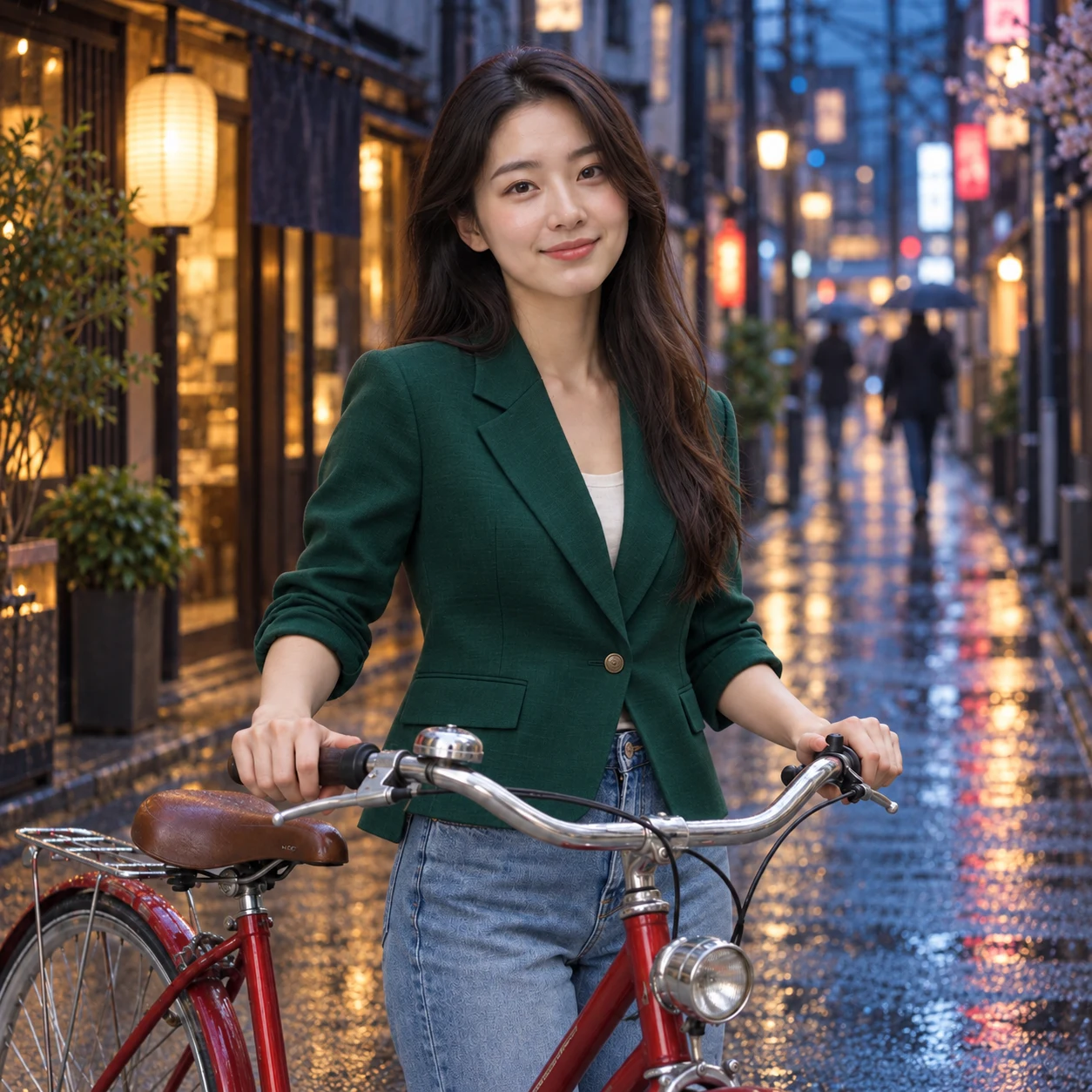
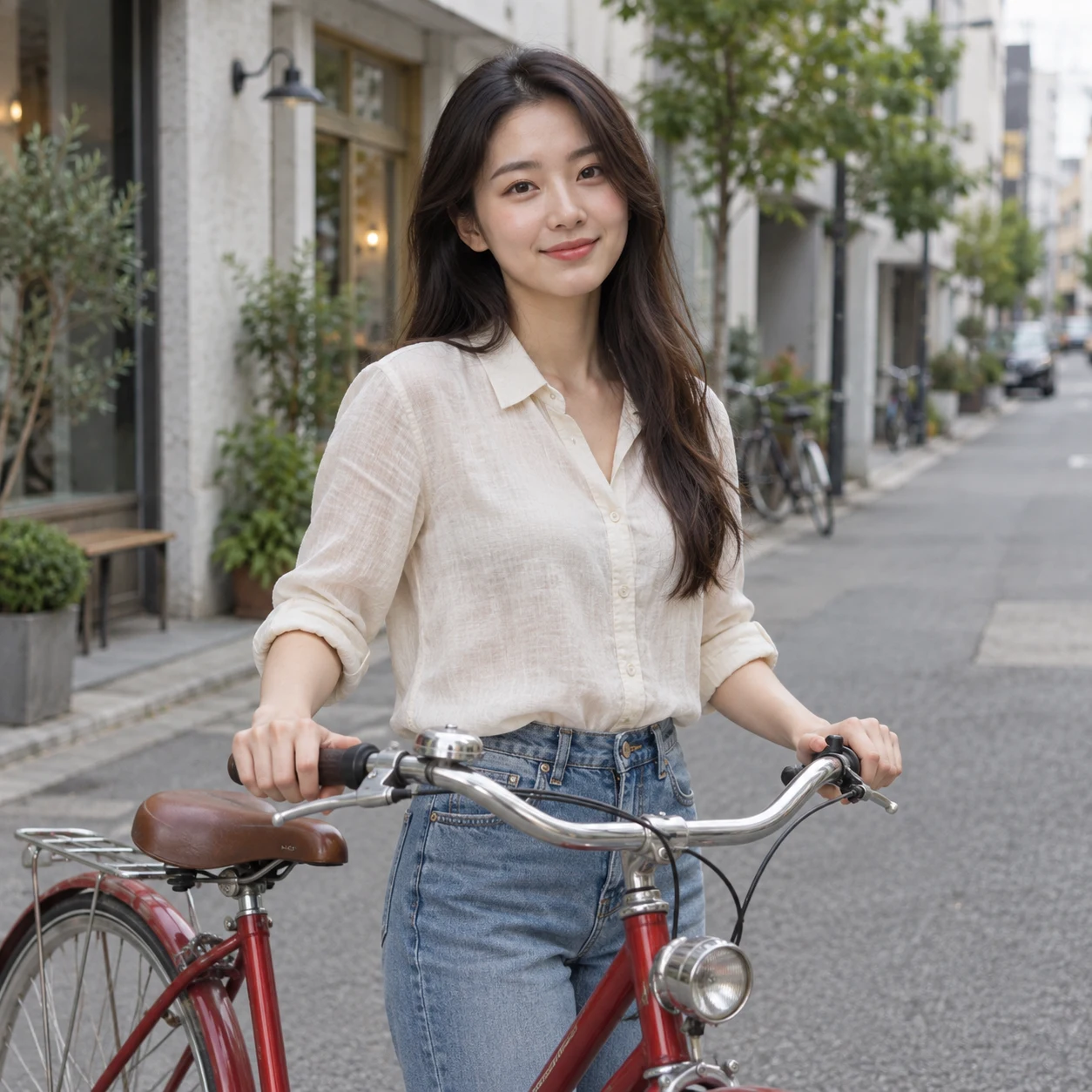
Change Wardrobe and Location

Preserve the person, pose, expression, and bicycle while changing the wardrobe, setting, and environmental light.

“Replace the cream blouse with an emerald jacket and move the scene to a rainy Tokyo street at blue hour. Keep identity, pose, and bicycle unchanged.”

After
After
Before
Before
Drag to compare

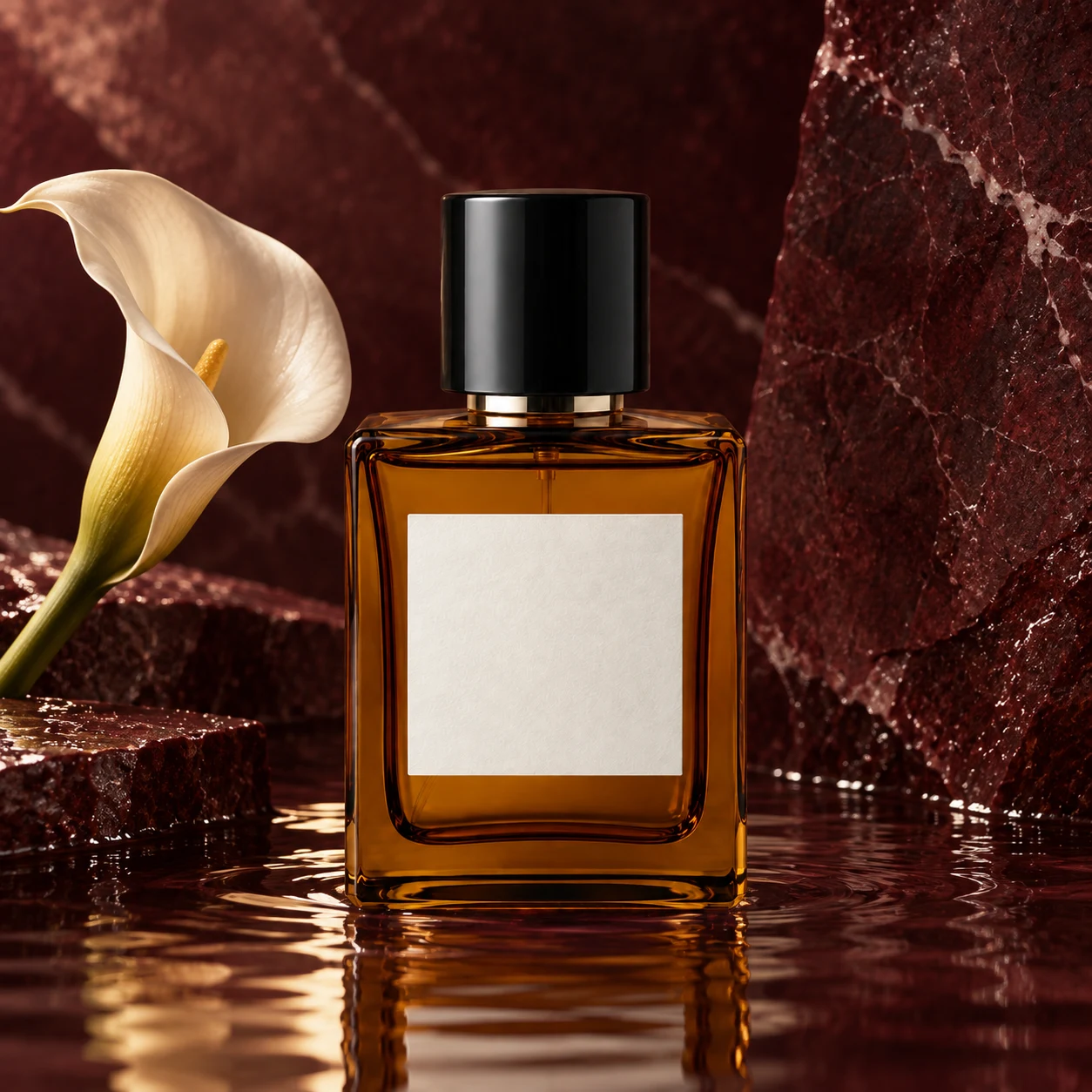
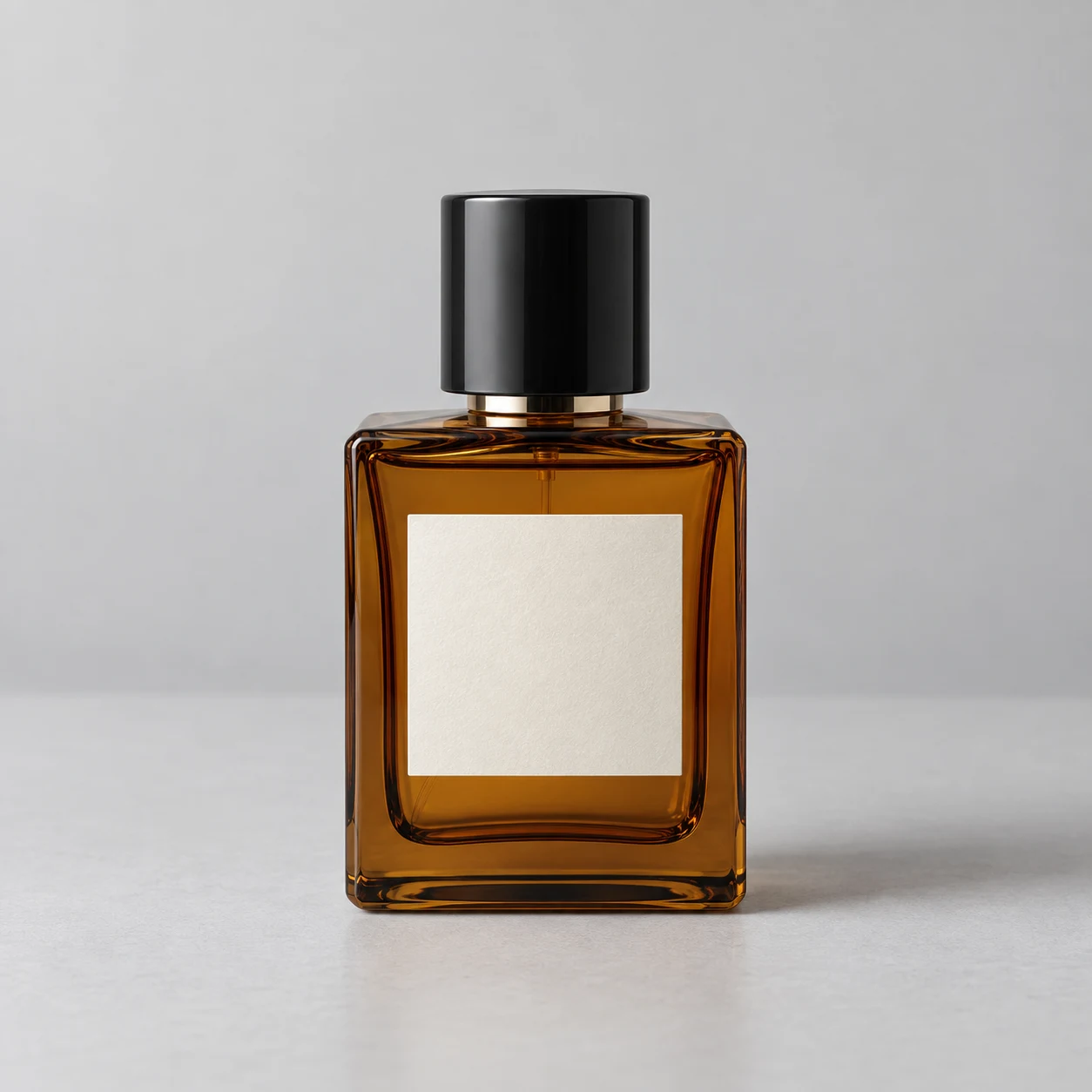
Turn a Plain Product Shot Into a Campaign Image

Keep the bottle design and blank label intact while rebuilding the environment around it for a richer product-video starting frame.

“Keep the amber bottle unchanged. Replace the gray studio with burgundy stone, reflective water, and a pale calla lily.”

Edited portrait prepared as a polished MiniMax H3 starting frame

What Is the MiniMax H3 Image Edit Workflow?

MiniMax H3 is a video model, not a standalone still-image editor. This page connects image-editing models with an H3 production workflow: refine a first frame or reference image here, download the result, then use it for Image to Video or Reference to Video. The selected image model performs the edit; MiniMax H3 animates the prepared image afterward.

  • Prepare the Source Image
    Fix distracting backgrounds, wardrobe, objects, framing, or style before motion makes those choices harder to control.
  • Use a Dedicated Image Model
    GPT Image 2.5 Flare is selected by default, with Nano Banana, Seedream, and Flux Kontext available for different editing needs.
  • Continue Into MiniMax H3
    Use the finished still as the opening frame or a subject, scene, product, and style reference in an H3 video generation workflow.

MiniMax H3 Image Edit Capabilities for Stronger Inputs

Make targeted changes that improve the visual information MiniMax H3 receives without rebuilding a source image from scratch.

Background Replacement

Move a subject or product into a more useful setting while asking the editor to preserve its shape, identity, and camera angle.

Wardrobe and Object Changes

Replace clothing, props, furniture, or product details with a precise instruction and explicit keep-unchanged constraints.

Composition Cleanup

Remove distractions, create cleaner negative space, or improve framing before the image becomes a video starting frame.

Style Direction

Establish a photographic, illustrative, cinematic, or product-campaign look that the later H3 prompt can reinforce.

Identity Preservation

Describe what must remain fixed—face, hair, pose, proportions, and expression—to reduce unwanted changes between versions.

Reference Preparation

Create cleaner character, object, environment, or style references before adding them to a multi-reference H3 generation.

How to Use MiniMax H3 Image Edit Before Video Generation

Treat the image edit and video generation as two clear stages so each model receives a focused instruction.

01

Upload the Image

Choose the first frame, character reference, product shot, or scene image you want to improve.

02

Describe the Edit

State what should change and what must stay unchanged. Mention identity, pose, camera angle, layout, and product geometry when they matter.

03

Generate and Review

Run the edit with GPT Image 2.5 Flare or another available model, then check edges, hands, text, faces, and continuity-critical details.

04

Animate With MiniMax H3

Download the approved still and use it as a first frame for Image to Video or as a visual reference for a reference-driven H3 video.

MiniMax H3 Image Edit Prompts That Preserve What Matters

A strong editing prompt separates the requested change from the details that must remain stable for the next video step.

Background Change

“Replace only the background with a quiet alpine lake at dawn. Keep the person, face, hair, clothing, pose, hands, lens perspective, and crop unchanged. Match reflections and light direction naturally.”

Character Wardrobe

“Change only the jacket to a weathered brown flight jacket. Preserve facial identity, hairstyle, body proportions, expression, stance, and every background element.”

Product Campaign Set

“Keep the product design, dimensions, label, materials, and camera angle unchanged. Build a premium campaign environment with dark stone, shallow water, and controlled warm studio reflections.”

MiniMax H3 Image Edit Questions and Workflow Limits

What the image editor does, which model is used, and how the result fits into a MiniMax H3 video workflow.

1

Does MiniMax H3 edit still images directly?

No. MiniMax H3 is used for video generation. The still-image changes on this page are handled by the image model you select, then the edited image can be used as an H3 first frame or visual reference.

2

Which image model is selected by default?

GPT Image 2.5 Flare is selected by default because it supports fast image-to-image editing. You can also choose Nano Banana 2, Seedream 5.0 Pro, or Flux Kontext Pro in the generator.

3

What can I change before generating an H3 video?

You can request changes to backgrounds, clothing, objects, lighting, composition, and visual style. Results remain generative, so review any identity- or continuity-critical detail before animation.

4

How do I keep a face or product unchanged?

Name the invariants explicitly. Ask the model to preserve facial identity, pose, expression, camera angle, product geometry, label, materials, and framing while changing only the requested element.

5

Can I use the result for MiniMax H3 Image to Video?

Yes. Download the approved edit and upload it as the first frame in an Image to Video workflow. Describe motion and camera behavior in the video prompt rather than repeating the still-image edit.

6

Can I prepare several references for H3 Ref2VA?

Yes. Edit character, object, scene, and style references separately, keeping shared details consistent. Then upload the clean set to a Reference to Video workflow.

7

Are the before-and-after examples GPT Image 2.5 Flare outputs?

No. They are illustrative imagegen assets created to demonstrate the editing workflow. They are not presented as verified outputs from the selectable production model.

Start Your MiniMax H3 Image Edit

Prepare a stronger first frame or reference image, then carry the approved visual direction into your next MiniMax H3 video.