MiniMax H3 Lip Sync Generator

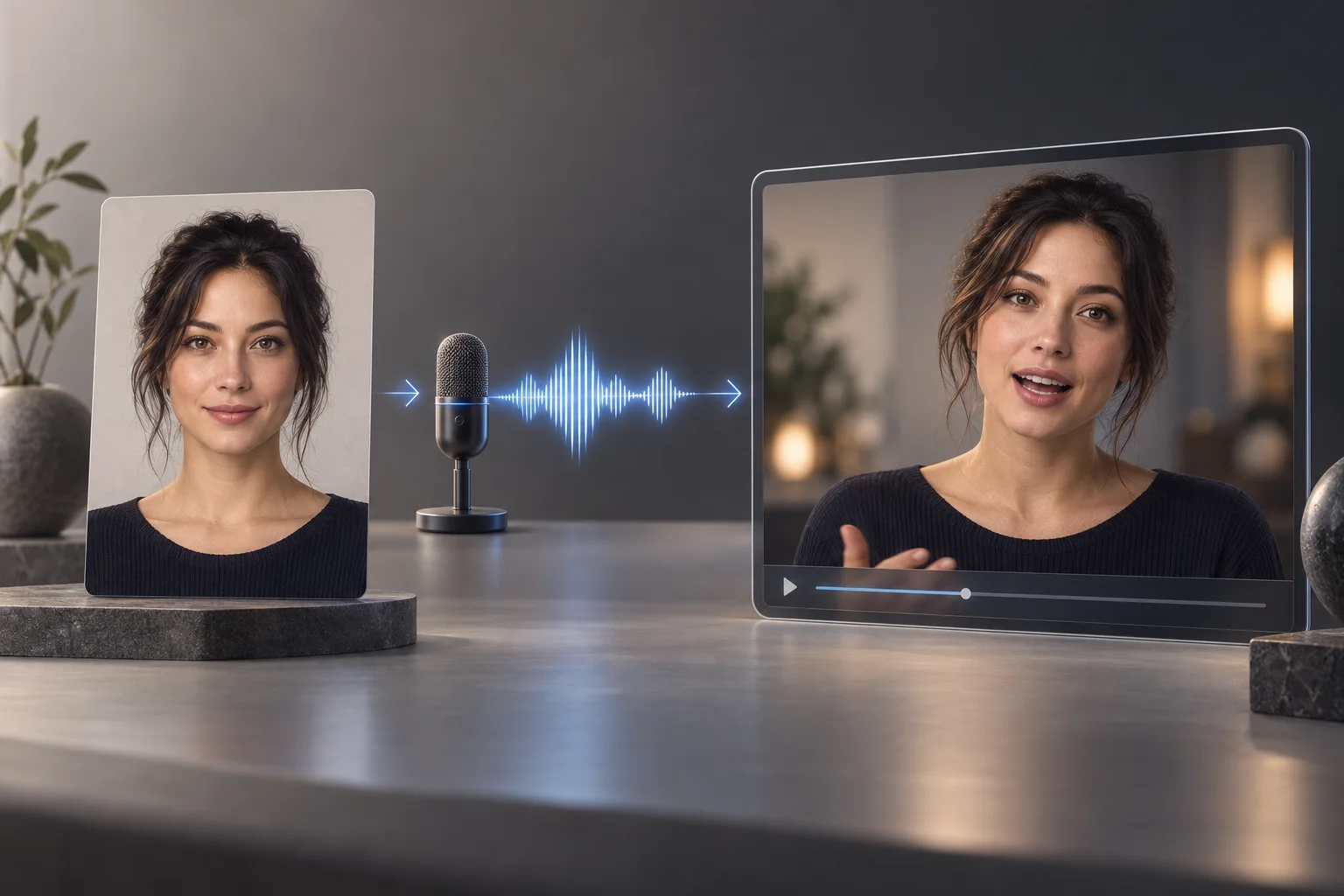
MiniMax H3 lip sync uses the dedicated H3 Max workflow to turn one clear portrait and your audio into a talking video with mouth movement matched to the soundtrack. Upload both files, choose a resolution, and generate in your browser.

One image plus audio5–14.8 second clipsOutput up to 2K

Upload one portrait and an audio clip. Audio must be at least 5 seconds; audio over 14.8 seconds is clipped.

Lip sync portrait
Lip sync audio

Transcribe speech to improve lip synchronization.

Preview video - Generate your own video above

What MiniMax H3 Lip Sync Gives You

Use a focused image-to-video workflow built around your portrait, your recording, and the delivery format you need.

Turn One Portrait and One Recording Into Video

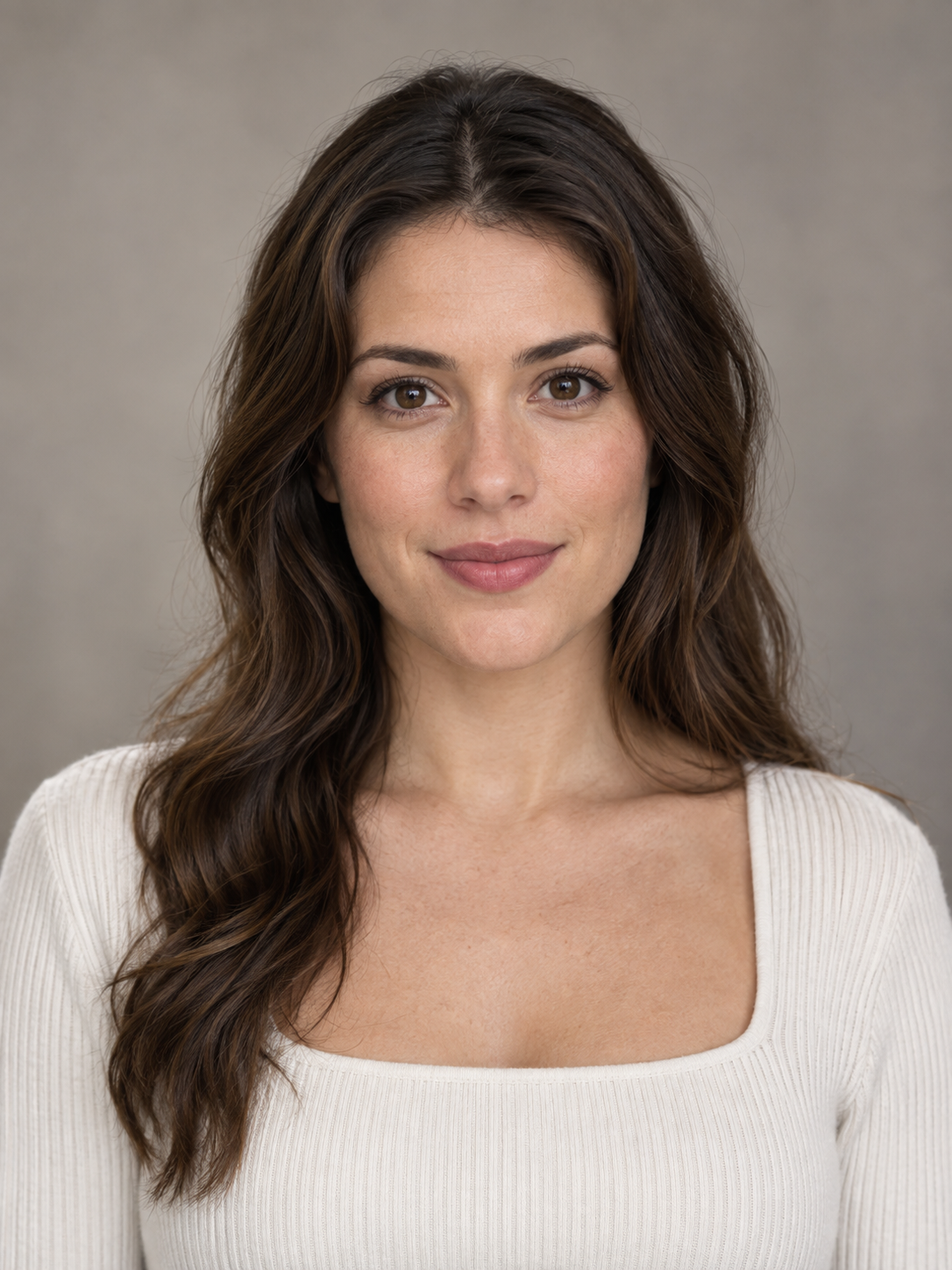
Start with a photograph, illustration, painting, or 3D portrait that has a visible face. Add the exact voice track you want the person to perform, without recording a driving video or rigging a character.

  • Accepts portrait, square, and landscape source images within the supported aspect-ratio range
  • Keeps the supplied audio as the soundtrack for the generated clip
  • Returns one downloadable talking video from the two inputs
Turn One Portrait and One Recording Into Video

Guide Mouth Movement With the Spoken Words

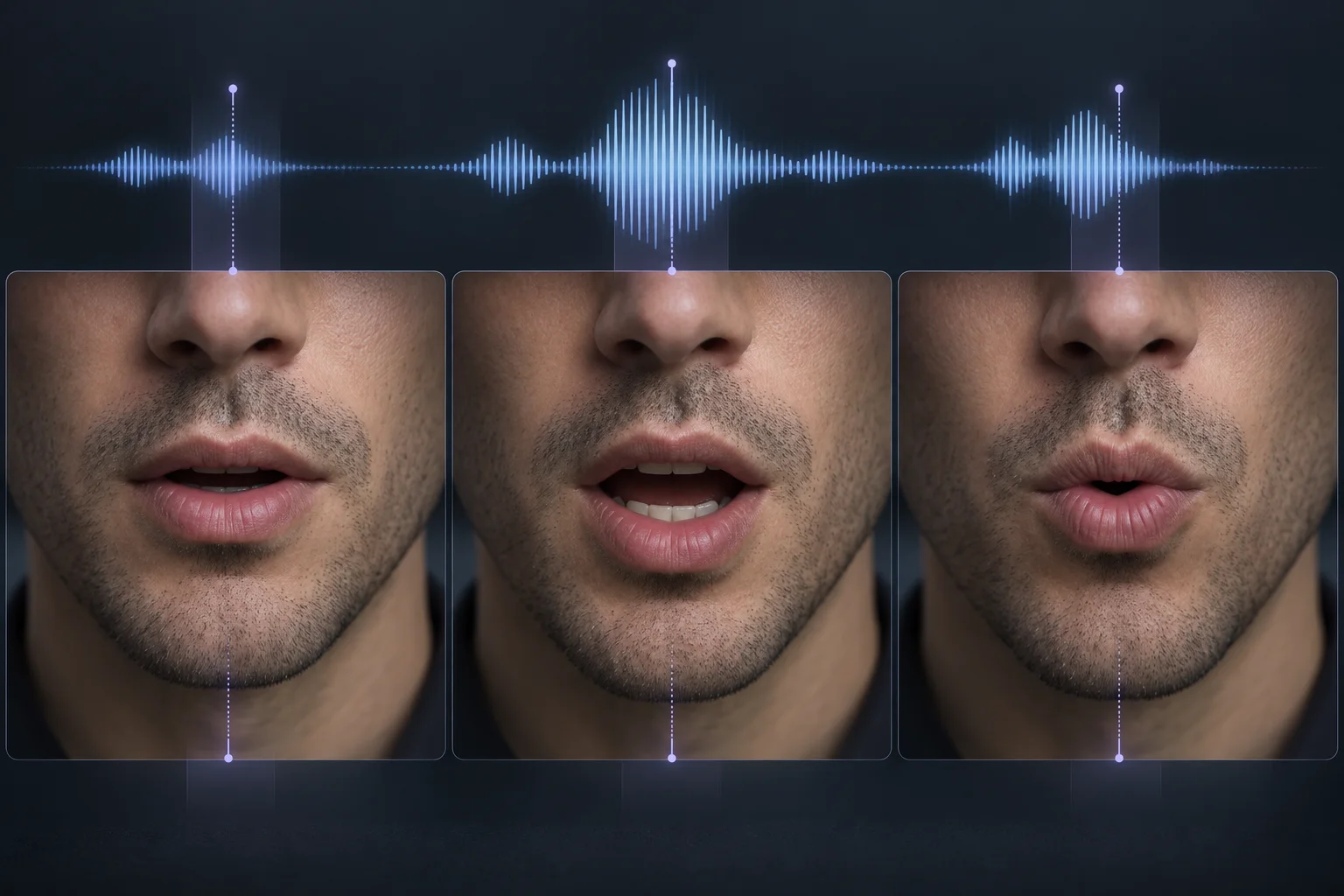
Enable transcription when clear speech should guide the synchronization, or turn it off when waveform timing is more useful for singing, stylized vocals, or processed audio.

  • Transcription-assisted synchronization is available for spoken dialogue
  • Waveform-only synchronization remains available when transcription is not a good fit
  • A fixed seed can help you return to the same generated take
Guide Mouth Movement With the Spoken Words

Prepare Talking Portraits for Different Formats

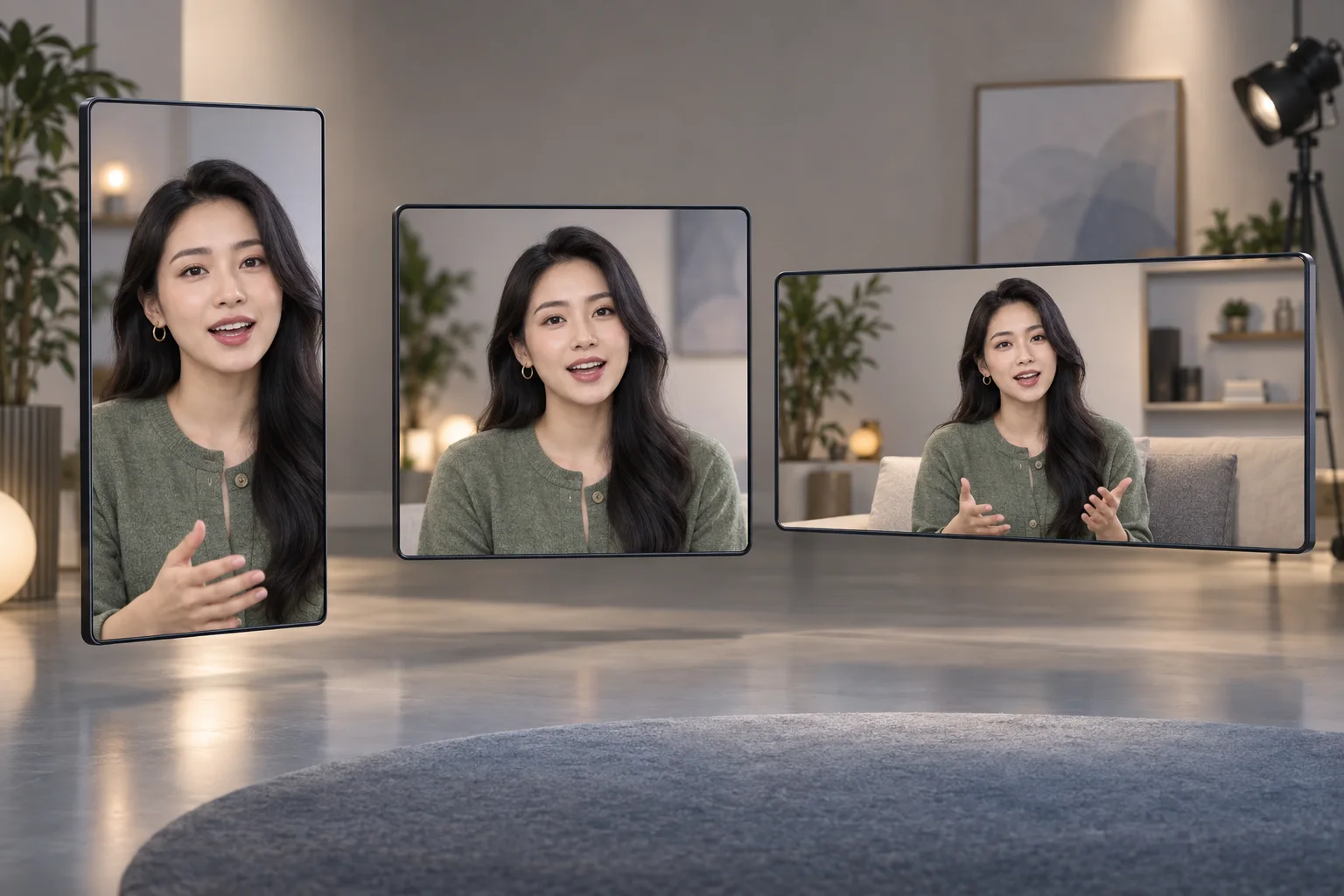
Choose 480P or 768P for quick drafts and social content, then move to 1080P or 2K when the final placement needs more detail. The closest supported shape is derived from the source image.

  • Four output choices: 480P, 768P, 1080P, and 2K
  • Useful for vertical presenters, square posts, and widescreen explainers
  • The output duration follows the accepted portion of the audio
Prepare Talking Portraits for Different Formats

How to Use MiniMax H3 Lip Sync

Bring a face and a finished voice track. The dedicated form handles the rest of the image-to-video setup.

01

Upload a Clear Portrait

Choose an image with one readable face and an aspect ratio between 0.4 and 2.5. Front-facing or three-quarter portraits usually give the mouth the clearest room to move.

02

Add Your Audio

Upload at least 5 seconds of speech, singing, or another vocal performance. Audio longer than 14.8 seconds is clipped to the first 14.8 seconds for a single generation.

03

Choose Settings and Generate

Select the output resolution, decide whether transcription should guide the sync, review the credit estimate, and generate your talking video.

Where MiniMax H3 Lip Sync Fits

Create short speaking clips when the portrait and finished audio already exist and the performance needs to follow that recording.

Talking Avatars

Turn an approved character or presenter portrait into concise onboarding, support, and announcement clips.

Product Explainers

Pair a spokesperson image with a recorded product message for landing pages, storefronts, and campaign creative.

Localized Social Videos

Reuse a consistent visual identity with separately recorded voice tracks for different languages and audiences.

Educational Presenters

Give a lesson, museum character, or historical portrait a short narrated performance for learning content.

Character Performances

Animate an original illustrated or 3D character with dialogue, stylized vocals, or a brief musical passage.

Creator Content

Produce compact intros, reactions, voiceovers, and talking-head inserts without filming a new take.

MiniMax H3 Lip Sync Questions

Practical answers about inputs, timing, transcription, output, and the dedicated lip-sync workflow.

1

What is MiniMax H3 lip sync?

MiniMax H3 lip sync is a dedicated H3 Max image-to-video workflow that animates a face from one still image and synchronizes its mouth movement to supplied audio. The generator exposes the image, audio, resolution, and transcription controls needed for that job.

2

How do I make a photo talk with MiniMax H3?

Upload a photo with a visible face, add the recording you want it to perform, select the output settings, and generate. You do not need a source video or a separate facial rig.

3

What images work with MiniMax H3 lip sync?

Photographs, illustrations, paintings, and 3D renders can work when the face is clearly visible. The accepted image aspect ratio is 0.4 to 2.5, covering common portrait, square, and landscape shapes.

4

How long can the lip-sync audio be?

The audio must be at least 5 seconds long. If it exceeds 14.8 seconds, the generator uses the first 14.8 seconds, and the output video follows that accepted audio duration.

5

What does transcription do?

Transcription gives the model the spoken words as an additional synchronization guide. It is useful for clear dialogue. You can disable it for singing, heavily processed vocals, or audio that a speech transcriber may interpret poorly.

6

Which output resolutions are available?

You can choose 480P, 768P, 1080P, or 2K. Lower resolutions suit drafts and lightweight social delivery, while 1080P and 2K provide more detail for final placements.

7

What does MiniMax-H3 force lipsync mean?

“Force lipsync” is an informal search phrase, not a separate control in this generator. It generally means using a dedicated image-and-audio lip-sync process so the mouth follows an existing recording instead of relying on speech created from a text prompt.

8

Is MiniMax H3 native lipsync the same as this tool?

They describe related but different workflows. General MiniMax H3 generation can create video with native audio, while this dedicated lip-sync tool starts from your finished audio and a still image. Use the dedicated tool when the exact voice track is already decided.

9

Can I lip sync an existing video here?

No. This generator starts from a still image, not an existing video. A video-to-video dubbing or lip-sync tool is the better fit when you need to replace speech in footage that has already been recorded.

10

What should I check before uploading a face or voice?

Use media you own or are authorized to use, obtain the appropriate consent, and avoid presenting a synthetic performance as a real statement from another person.

Create With MiniMax H3 Lip Sync

Upload one portrait and your finished audio, choose a resolution, and generate a talking video from the dedicated lip-sync workflow.