
Can MiniMax H3 edit an existing video from a prompt?
Yes, through generative re-creation. Upload a source clip in Multimodal Reference mode and describe what its motion or camera should contribute to a newly generated video.
Upload a source video and describe the new content, style, camera language, or sound you want. Start with multimodal reference editing, or switch to text, frame, and image-reference modes for a different regeneration path.
Add up to 12 references: 9 images, 3 videos, and 3 audio clips. Each video or audio clip must be 2–15 seconds; videos and audio each have a separate 15-second total limit. Refer to them as Image 1, Video 1, and Audio 1 in your prompt.
Ready to generate
Your generated video will appear here
Motion and style references
These clearly labeled H3 Max examples show source material worth studying: camera travel, performance, action, product detail, stylized worlds, and landscape motion. Bring your own clip to the MiniMax H3 generator above.
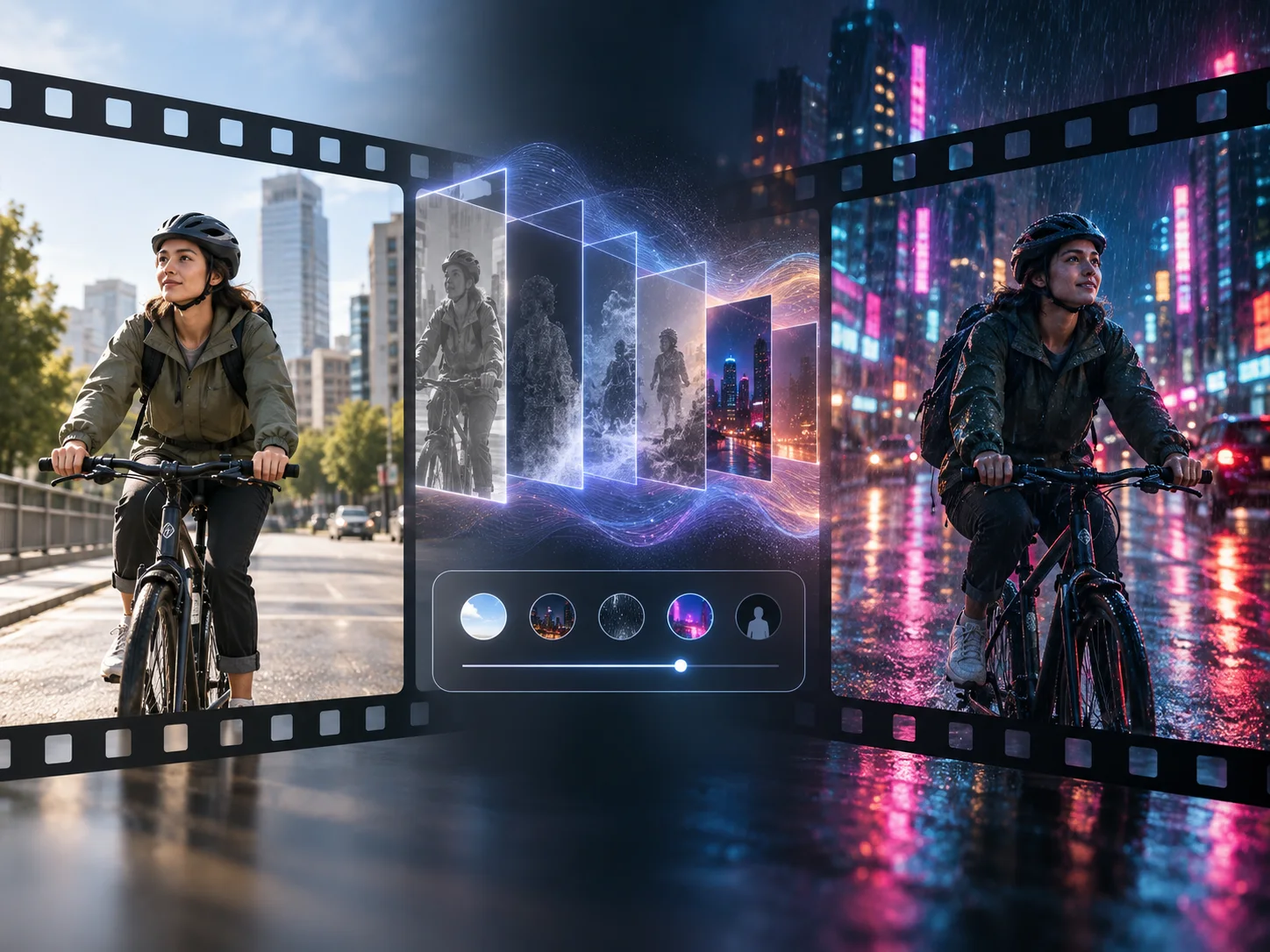
MiniMax H3 video edit is a generative re-creation workflow powered by the MiniMax H3 video model available in the generator on this page. Instead of changing clips on a traditional timeline, you provide a video, keyframes, or visual references plus a prompt, and the model generates a new video around that direction.
Choose the workflow that matches the part of your footage you need to preserve: overall motion, decisive frames, or an art-directed key image.
Upload the original video in Multimodal Reference mode, call it Video 1 in the prompt, and state which motion, camera rhythm, or timing should guide the new generation. Then replace the subject, environment, style, or sound for alternate campaign cuts and visual concepts.
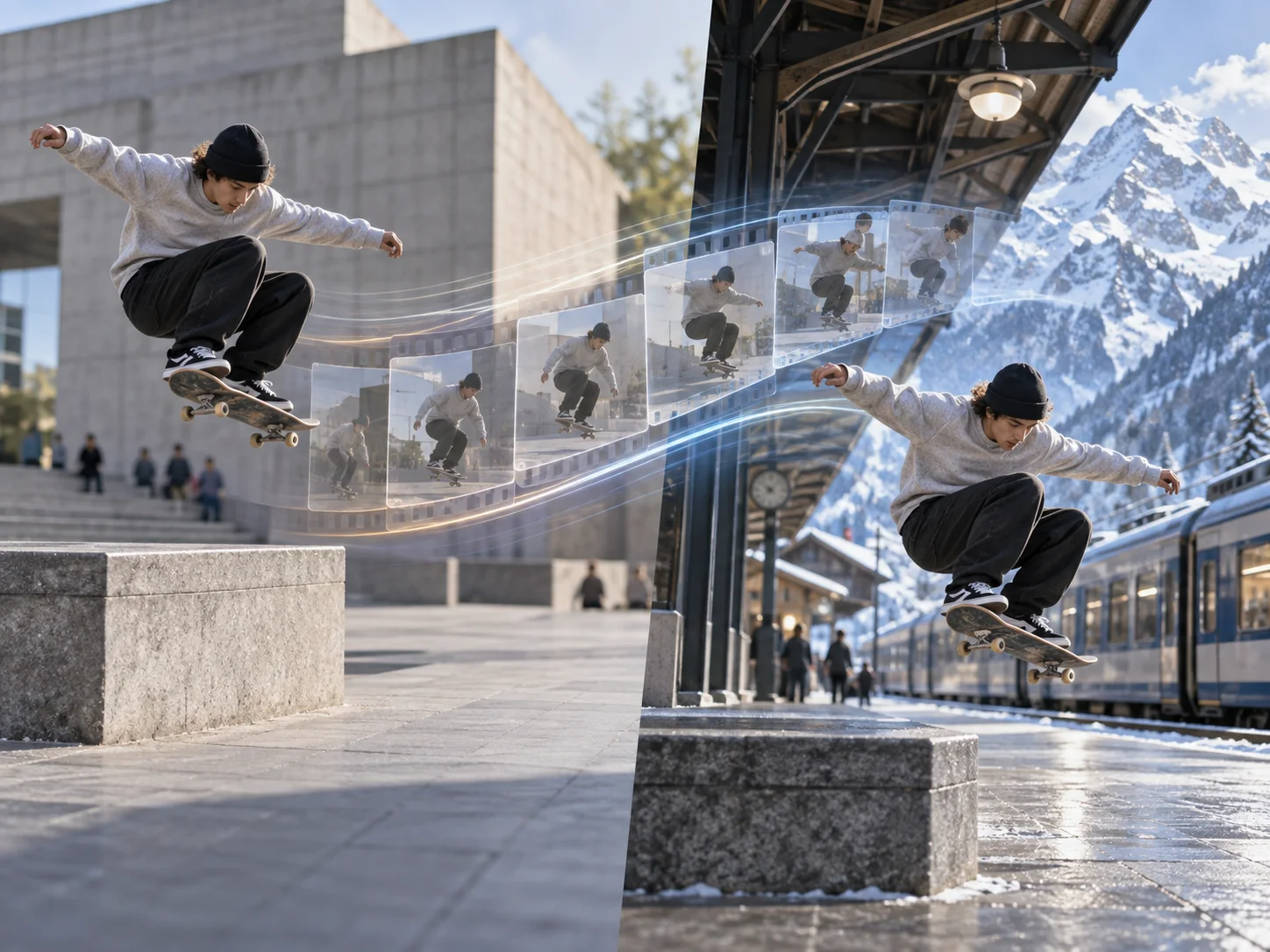
Extract a strong opening frame or an opening-and-ending pair from the source, then use Frame to Video to generate the motion between those anchors. This path helps redesign transitions, scene progression, and visual tone without treating every original frame as fixed.
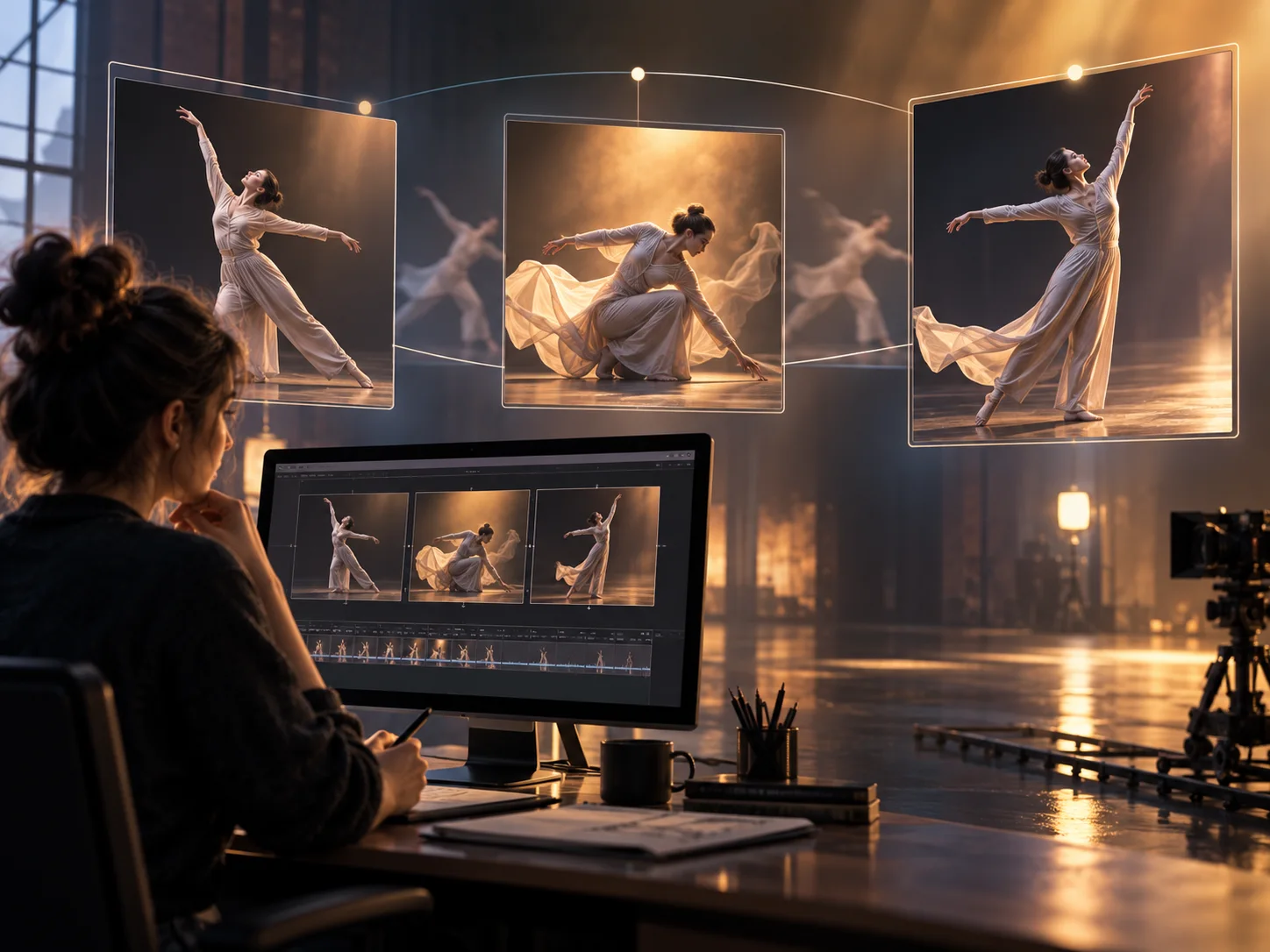
Take a representative frame into an image editor first, change the product, wardrobe, background, or lighting, and then use that revised image as a frame or reference for video generation. This separates precise still-image art direction from the motion pass.
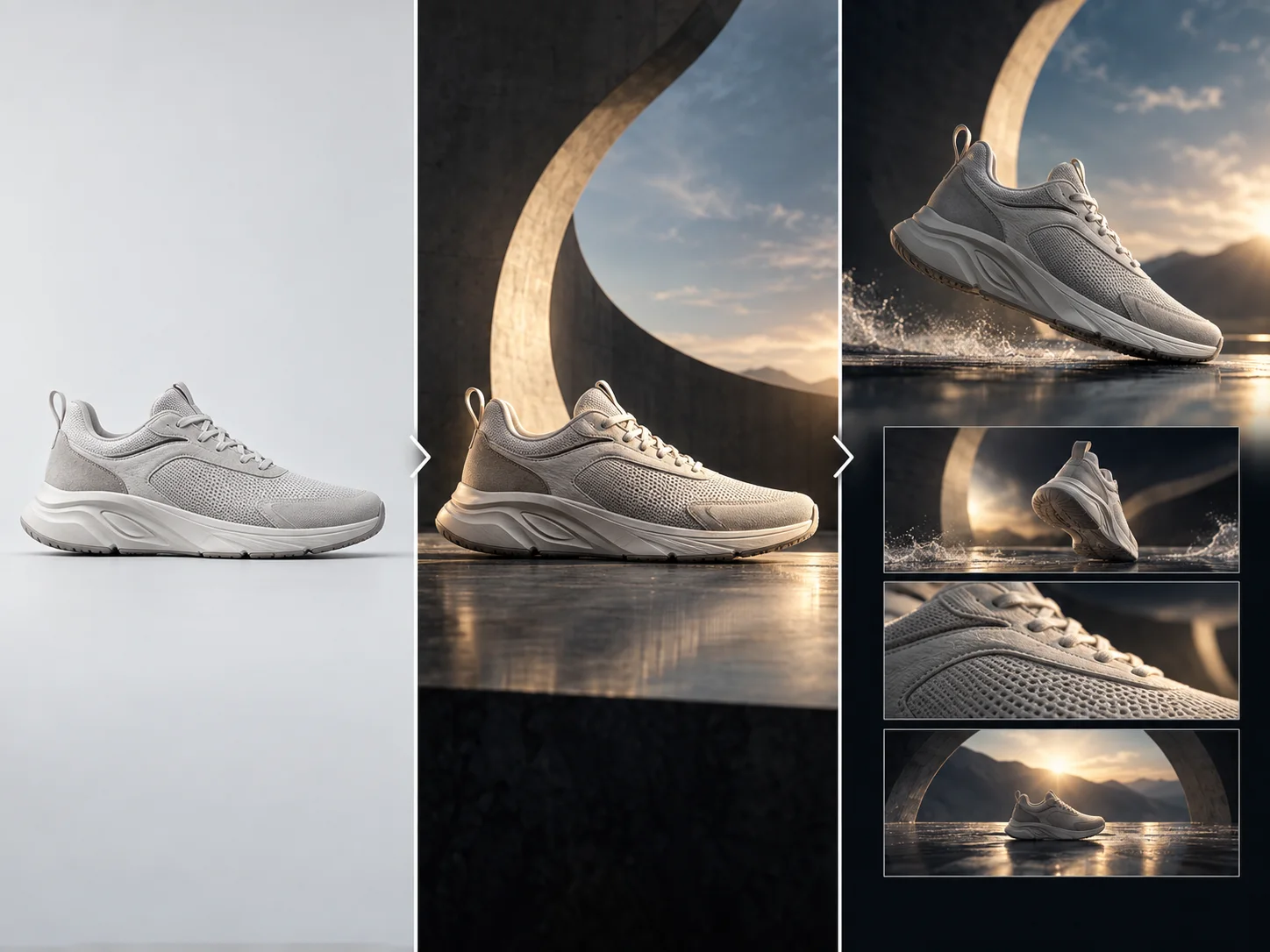
Define the creative change first, then choose the source material that communicates it most clearly.
Keep MiniMax H3 selected. Use Multimodal Reference for a source video, Frame to Video for keyframes, or Reference Images for visual identity and style.
Choose a readable clip or a small set of decisive images. Give each video, image, or audio reference one clear role.
Name what to retain—such as camera motion or pacing—then specify the new subject, setting, lighting, action, and sound.
Set the supported duration, aspect ratio, and resolution, generate a new clip, then adjust one instruction or anchor at a time.
Use generative editing when the source has a useful idea or movement but the next version needs a different visual treatment.
Keep a proven reveal rhythm while re-creating the environment, lighting, and art direction for a new launch.
Translate the broad staging of a clip into documentary, fantasy, animation, or another clearly described visual language.
Use key images and a prompt to explore a new character treatment while building fresh motion around the visual anchor.
Borrow the intent of an orbit, push-in, tracking move, or reveal for a newly generated subject and location.
Extract start and end frames, redesign either endpoint, and generate a new visual bridge between them.
Turn one readable action into alternate social clips with different settings, moods, and synchronized sound direction.
Clarify how source videos, keyframes, references, and prompts work in this generative editing workflow.
Yes, through generative re-creation. Upload a source clip in Multimodal Reference mode and describe what its motion or camera should contribute to a newly generated video.
No. It does not trim clips, move timeline layers, or guarantee pixel-level changes to selected frames. It generates a new clip from prompts and reference media.
Choose Multimodal Reference, which opens first on this page. Upload the clip as Video 1 and describe the movement, camera, timing, or sound you want to use as direction.
Yes. Extract a representative frame, revise it with an image-editing model, and use the result as an opening frame or image reference for a new MiniMax H3 generation.
Not exactly. A source video guides the new generation, but poses, timing, framing, and identity can vary. Call out the few motion and camera traits that matter most.
The selected MiniMax H3 task supports text, opening or ending frames, image references, and multimodal references that can include images, videos, and audio within the limits shown in the form.
Choose the clip, frame, or reference that best communicates your direction, then generate a new version from the prompt.