
Is MiniMax H3 Turbo the same as H3 Max Turbo?
Yes. This generator uses MiniMax H3 Max Turbo for text-to-video and image-to-video creation.
Turn a prompt or a starting image into a short video with MiniMax H3 Turbo. The generator is set to the H3 Max Turbo tier for fast, lower-cost creative iterations; its model selector shows the exact tier before you generate.
Ready to generate
Your generated video will appear here
A coastal-drive example made with H3 Max shows a useful starting brief: a moving subject, changing camera distance, and environmental sound. Bring your own direction to the Turbo generator above.
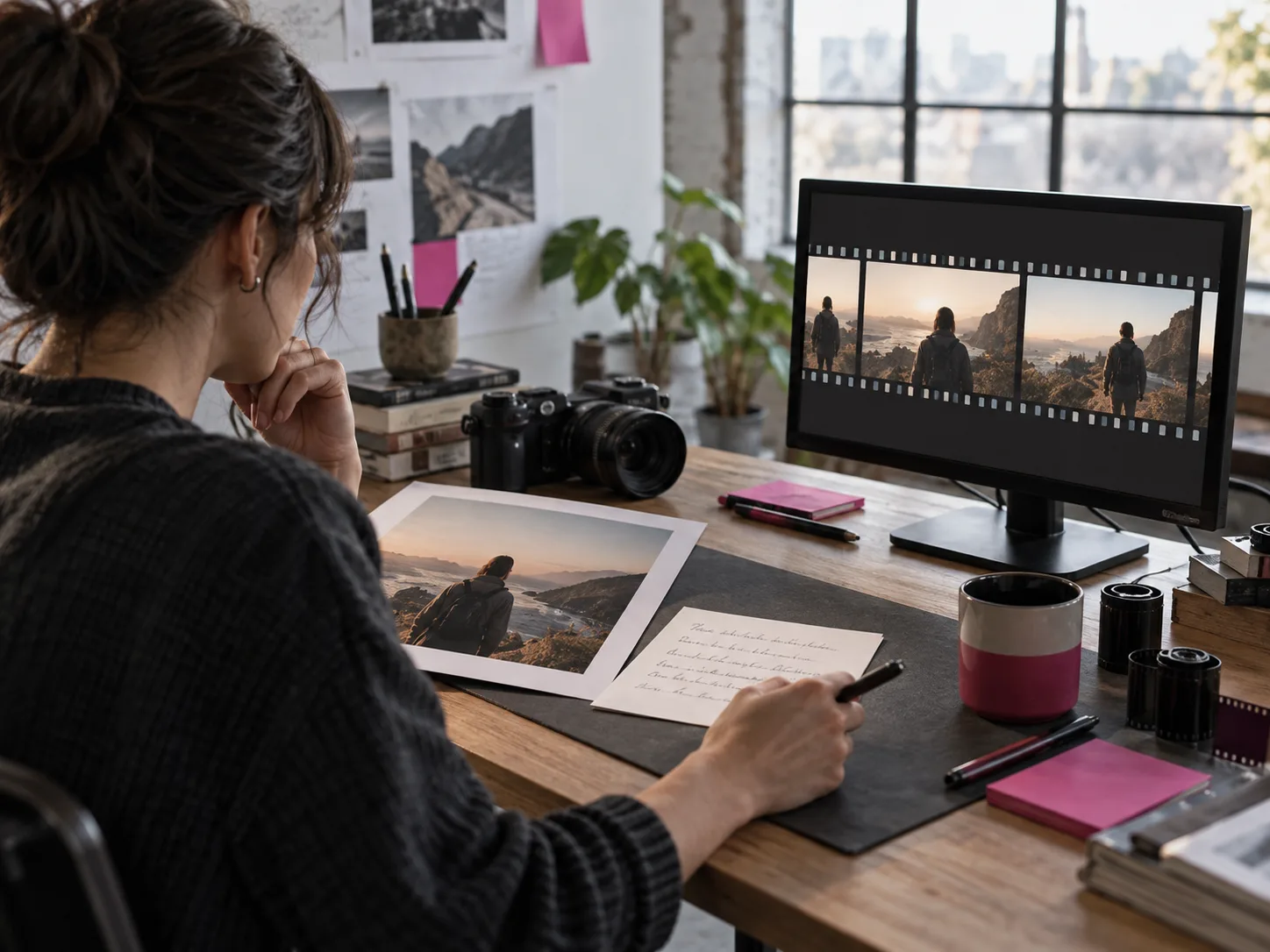
This MiniMax H3 Turbo generator uses MiniMax H3 Max Turbo. Turn a text prompt or a starting image into a video with native audio. Choose it for faster, lower-cost iterations than H3 Max.
Use the H3 Max Turbo tier when you need several short options from a clear brief, with controls that stay close to the creative decision.
Write the subject, action, camera move, and sound in one brief. Turbo turns it into a short video, so you can try alternate openings or motion directions before choosing a final concept.
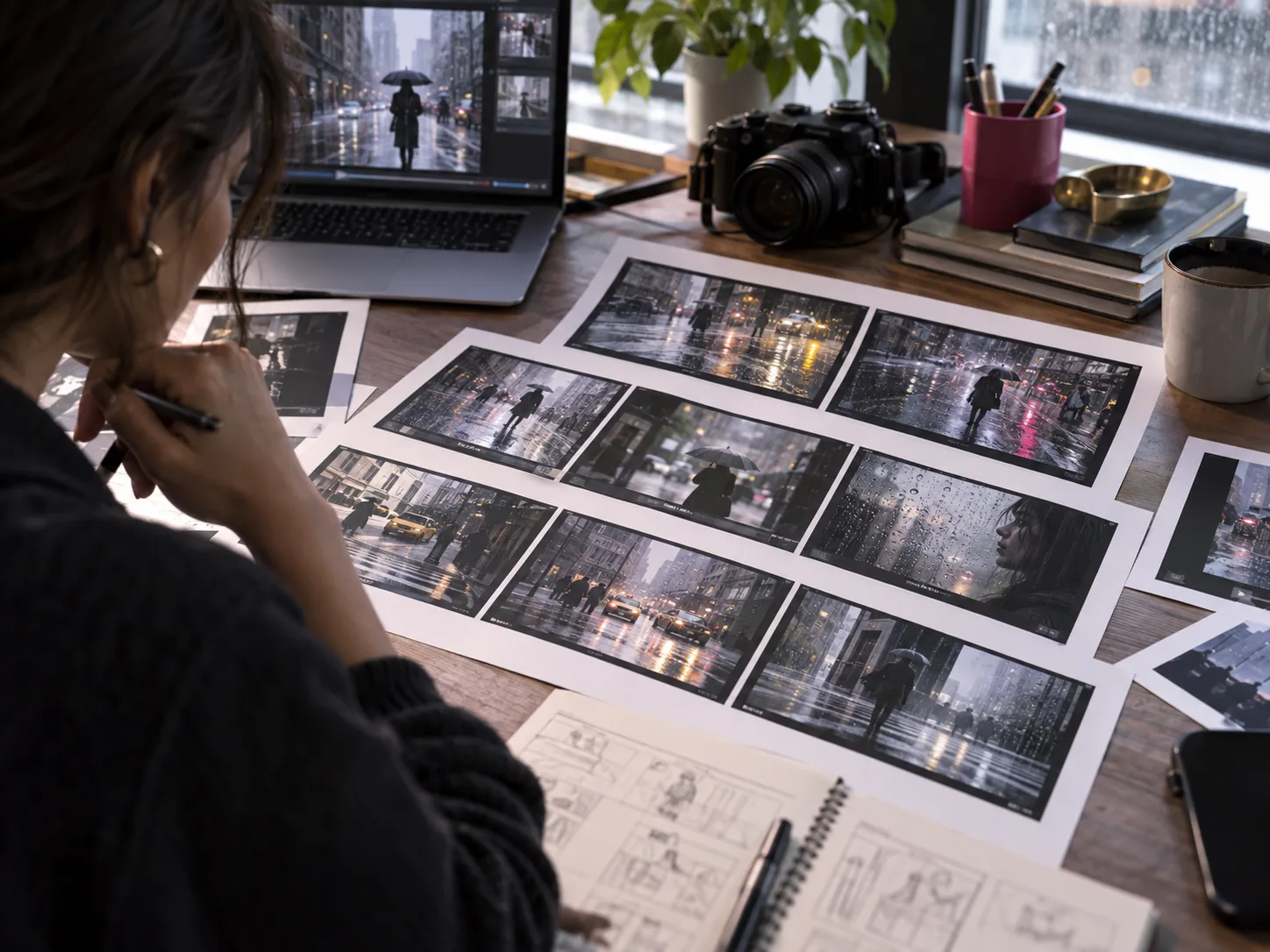
Upload a first frame and describe how the subject or camera should move. Use the resulting video to explore a product reveal, animated scene, or social clip anchored to an existing image.
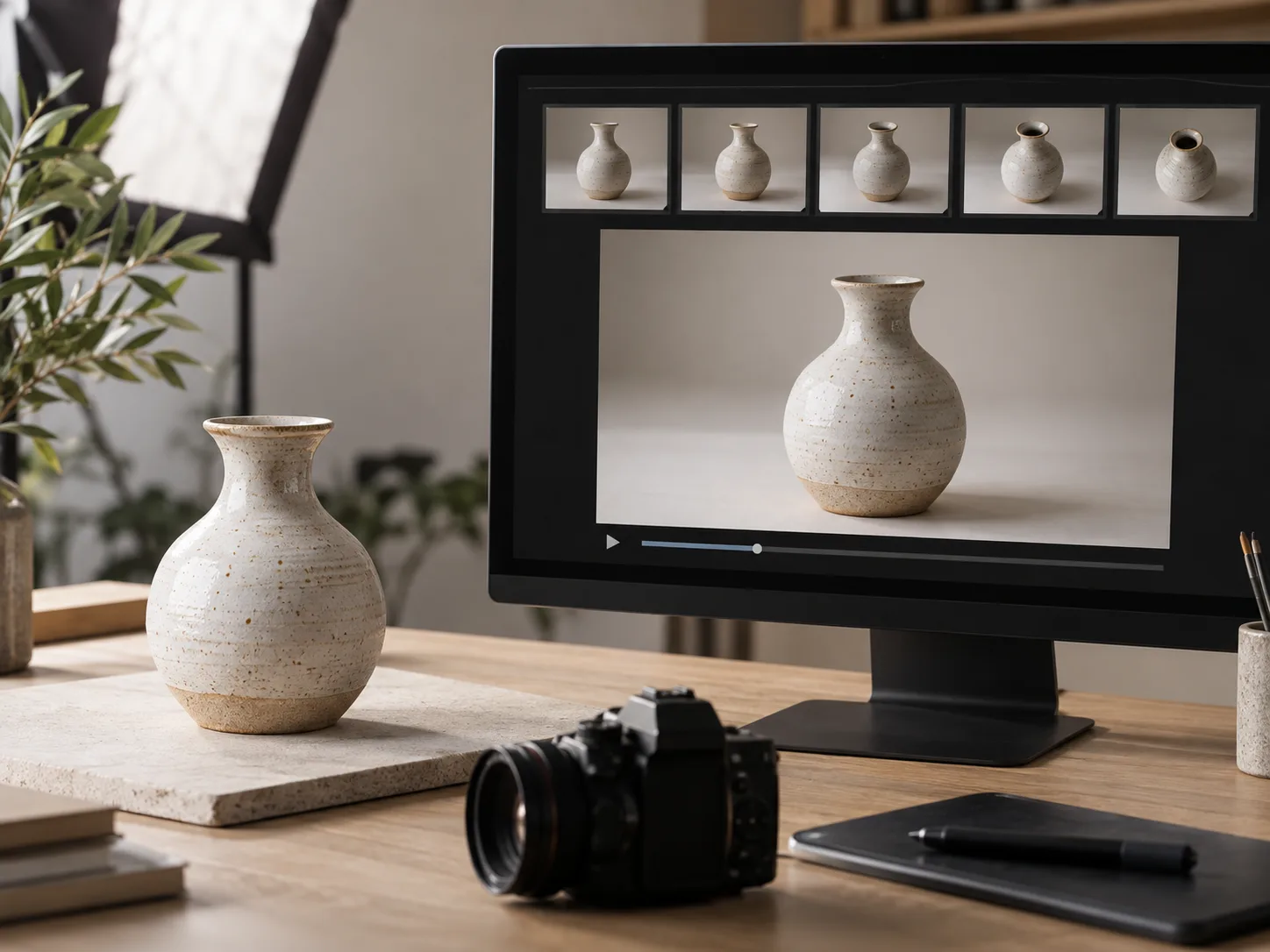
Choose a 5–15 second duration and 480P, 768P, or 1080P output. Start lighter while shaping the idea, then choose the delivery size that fits your placement and review the credits before generating.

The generator above starts with MiniMax H3 Max Turbo selected, and the model selector lets you see or change the active tier.
Choose text-to-video for a new scene, or image-to-video to use a starting frame.
Write what should happen, how the camera should move, and any sound that matters. Set duration and resolution for the intended placement.
Check the selected MiniMax H3 Max Turbo tier and credit estimate, submit the task, then review or download the video when it is ready.
Compare the MiniMax H3 options by input, output, and creative workflow. This generator uses H3 Max Turbo for Turbo videos.
| Model tier | Best fit | Available workflow here |
|---|---|---|
| MiniMax H3 | Broader reference direction and up to 2K output | Text, frame, and reference-based video tasks |
| MiniMax H3 Max | A balanced default for polished shots and richer reference workflows | Text, frame, and reference-based video tasks |
| MiniMax H3 Max Turbo | Fast, lower-cost drafts and multiple creative variations | Text-to-video or image-to-video; selected on this page |
Build several candidates when the brief calls for speed, manageable cost, and a clear choice of text or image input.
Try alternate opening actions and camera moves from the same campaign idea before picking a direction.
Animate an existing product image into a short reveal for a storefront or social post.
Draft short vertical or square motion ideas around a single message or scene.
Turn one storyboard frame into a moving preview that helps a team discuss timing and framing.
Generate different versions of a scene prompt to find the composition and mood that work.
Describe ambience and on-screen action together for a compact audiovisual beat.
Find the exact model tier, supported inputs, practical settings, and how it differs from other H3 options.
Yes. This generator uses MiniMax H3 Max Turbo for text-to-video and image-to-video creation.
Yes. Select image-to-video, upload a starting frame, and describe the movement you want. You can also use text-to-video when you have no source image.
The generator offers 5–15 second clips at 480P, 768P, or 1080P. Available aspect ratios depend on the selected input mode.
Choose H3 Max when you need its broader reference workflow or want to refine a final shot there. Choose H3 Max Turbo for quick drafts and lower-cost variations from text or an image.
MiniMax H3 has broader reference options and up to 2K output here. H3 Max Turbo focuses on fast 480P–1080P text-to-video and image-to-video generation.
The generator shows the current credit estimate after you choose the Turbo task, duration, and resolution. Review it before submitting, since the total changes with those settings.
Start with a prompt or first frame, keep H3 Max Turbo selected, and turn the idea into a short video.