
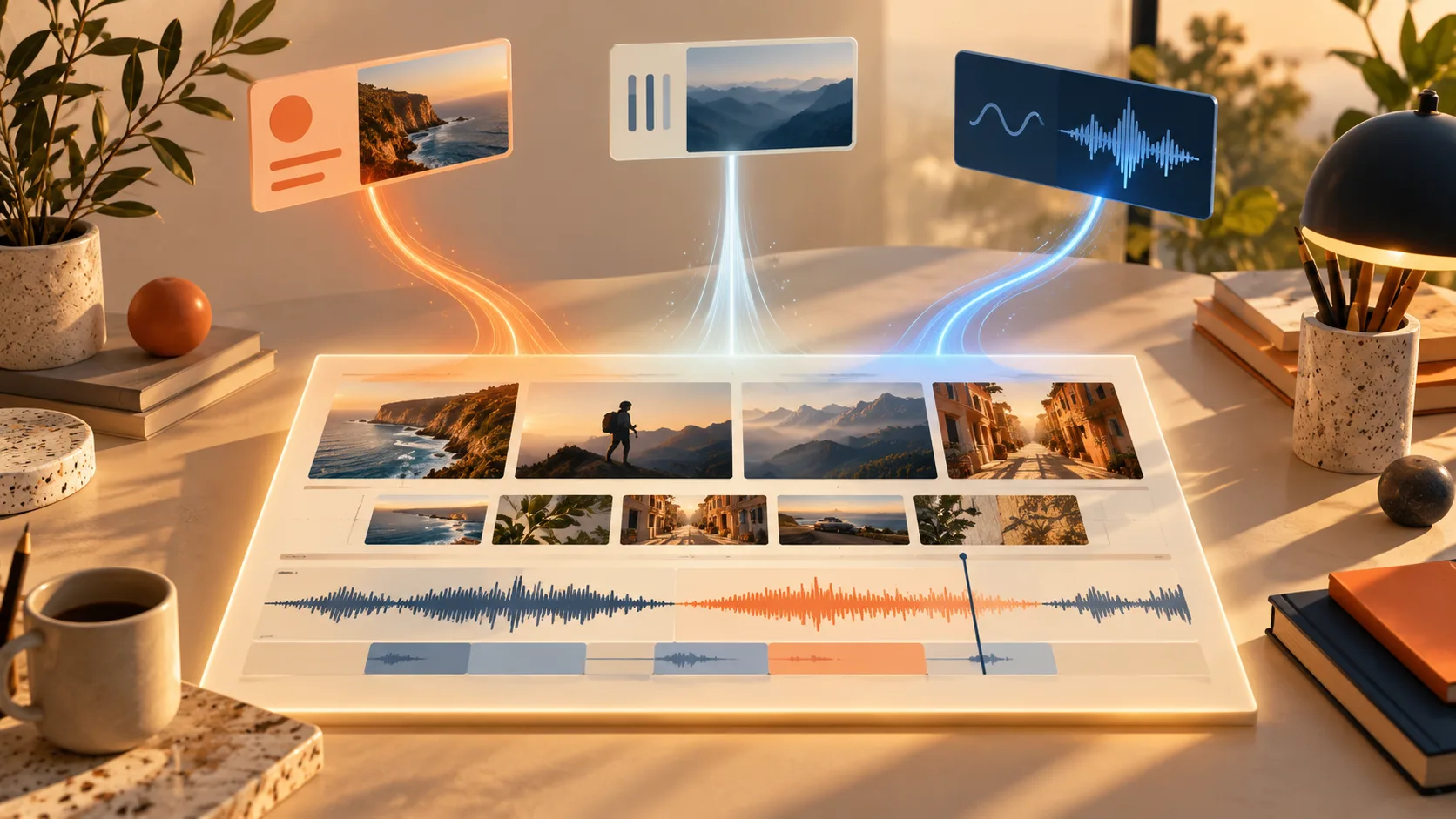
MiniMax Design MCP connects an external agent to MiniMax's creative desktop application. The October 23, 2026 official announcement names Codex and other agents and says creations synchronize to Design Canvas. For an H3 user, the practical opportunity is to keep planning, generation and review in a connected project instead of moving each result between separate tools.
This is a documentation-based starting guide. We reviewed the announcement, its setup reply and the public Design site on October 24; we have not installed the connector or generated a video through it. The cover is an AI-generated concept illustration.
Start from the desktop application's connection flow
The official setup reply gives two steps: update Design to the latest version, then choose Connect External Agent beside the avatar and follow its instructions. Obtain the app from design.minimax.io. Its download page lists macOS 13+ and Windows 10+ x64.
Use the configuration generated by that flow for your selected client. The announcement does not publish a universal server URL, command, token format or complete compatibility matrix. A configuration copied from an unrelated MiniMax speech MCP package is not evidence that Design Canvas is connected. Similarly, an older screenshot may predate the connection menu.
After connection, begin with discovery: ask the agent what Design tools are available and which project or Canvas they operate on. Before a generation request, identify the intended model, source assets and output destination. This makes a failed connection distinguishable from a correctly connected agent choosing the wrong creative operation.
Give the agent a production brief
The public Design workflow describes a main agent that breaks down a brief, a canvas covering scripts through editing, and review checkpoints. It also says model selection can be manual. That matters when your objective specifically requires MiniMax H3: asking only for “a video” leaves more room for automatic routing.
A useful first request is a plan that does not generate anything yet. Supply the target length, aspect ratio, intended audience, subject references and sound requirements. Ask for a shot list and an asset inventory. Keep a small project small; proving the connection does not require a multi-minute film.
For example, an editorial brief to adapt is:
Plan a fifteen-second landscape product film for an original ceramic lamp. Use the supplied product photo to preserve its silhouette and orange glaze. Propose three short shots with one restrained camera move each. Specify MiniMax H3 for generated footage. Show the shot list, required inputs and expected generation charges before running anything. Put accepted assets in the current Design Canvas.
This is a suggested brief, not a tested magic phrase or a statement about exact tool arguments. Replace the object and requirements with your own. If the agent reports a different model, resolve that before comparing results with H3 examples.
Review references before motion
Prepare the clearest identity and product images first. A reference can describe appearance without being an exact first frame; a first/last-frame operation has a different purpose. Ask the agent to state which operation it intends to use and how each input is bound.
For a character scene, separate the character image from the environment and any motion reference. Name the details that matter: jacket color, product proportions, camera direction or the order of actions. Avoid asking one short shot to establish a location, change costumes, introduce several people and finish a complicated stunt simultaneously.
Our reference-to-video page explains the separate online reference workflow. Its form is not the Design MCP connector. Use it to understand the creative distinction, while following the actual connection flow for the desktop application.
Treat Canvas review as part of delivery
Automatic synchronization is useful only if the expected result reaches the expected project. After a request, inspect the generated asset in Canvas and play it with sound. Check the opening and closing frames, subject identity, camera continuity and spoken words. A completed tool call alone cannot establish that the clip satisfies the brief.
Keep accepted takes distinct from rejected alternatives. Record which input and prompt produced the chosen clip before requesting changes. For a three-shot film, approve the first shot's visual direction before multiplying that direction across the remaining shots. This limits unnecessary rerolls and makes revisions easier to describe.
The site's local asset-management description does not mean every model runs locally. The application can manage local files while using hosted generation. Confirm the selected operation and its price in the app rather than inferring free local inference from the desktop interface.
Troubleshoot the stage that failed
If the connection option is missing, verify the app version and use the official update path. If the client connects but exposes no usable Design tools, compare its configuration with the current in-app instructions. If generation finishes but an asset is absent, check the selected Canvas and the returned task status before submitting another request.
For visual failures, revise the shot or reference binding rather than reinstalling the connector. For unexpected charges, review the actual model and number of submitted jobs. Community demonstrations show useful possibilities, but do not establish every client's setup, all supported models or an unlimited generation entitlement.
The MCP release is an orchestration feature. It does not replace a documented model API, and this article does not mean H3Vid has integrated Design's account, Canvas or desktop tools. Start with the official connection flow, prove one manageable asset and expand the project after reviewing its result.