
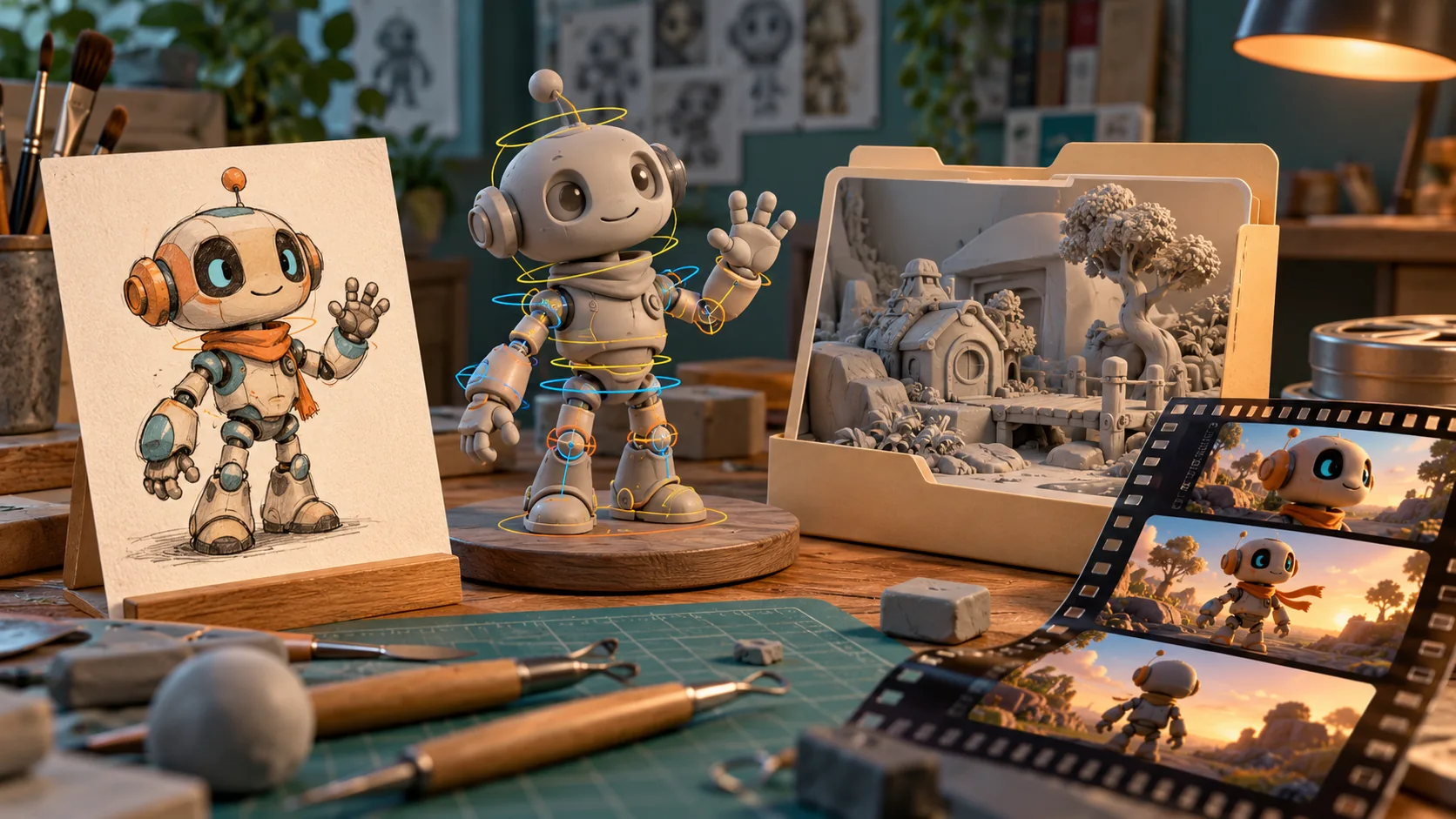
Atelier 3D is a local Windows workspace that combines image creation, image-to-3D, rigging, animation and a MiniMax H3 video branch in a node-based interface. Its distinctive output question is whether you need generated footage or an actual rigged Blender asset. Those branches can coexist in one workspace, but they do not produce interchangeable deliverables.
This guide follows the author's French README and workflow contract, reviewed October 20, 2026. We have not installed Atelier 3D, tested its installer or verified its hardware claims. H3Vid's online tools do not provide this local application.
Check Windows, storage and the selected engines
The project targets Windows 10/11 x64. Its installer supplies isolated runtimes and offers components individually, so users do not need to assemble every dependency manually. The README recommends 8GB VRAM, with a lower minimum for some AI engines, and a recent NVIDIA driver for its CUDA 13 engines. Its H3 video branch separately recommends 8GB VRAM and 32GB RAM as the author's tested configuration.
These statements do not mean every engine, canvas or graph fits on that machine. Disk requirements also depend on your selections: the README estimates around 50GB without video and animation, and around 140GB for the full selection. The H3 text encoder alone is large. Inspect the installer's component total rather than budgeting only for the application ZIP.
A machine without a compatible NVIDIA GPU can still use the interface, Blender and export functions according to the README, but that is not a claim of CPU-only H3 generation. Keep the capability report and chosen components together when diagnosing a missing node or unavailable engine.
Install only the branch you need
The documented path is to extract the release package and run INSTALL.bat. It diagnoses the machine, presents component choices and downloads selected runtimes and weights. Rerunning installation is also the route for adding a component later; unchecking a previously installed component is not documented as an uninstall operation.
For video, the installer offers a supplied H3 environment or attachment to an existing ComfyUI installation that already contains H3 and its weights. The reference mode adds Ref2VA weights beyond the ordinary video selection. A user seeking image-to-video should not assume every reference feature was installed simply because the video checkbox was selected.
The README describes resumable downloads and file verification. Those are project claims, not checks we independently performed. Start with a small graph after installation and confirm that the actual engines report healthy before building a large production graph.
Understand what H3 Ultra means here
The workflow documentation identifies “Ultra” as the name of an imported workflow pack, rather than a new MiniMax model identifier. The video branch uses local H3 FL2VA or Ref2VA weights, Qwen3-VL, VAEs and a four-step Turbo LoRA. It does not become a separate hosted MiniMax API by being exposed in the Atelier interface.
FL2VA handles text and endpoint-image conditioning. The reference branch exposes ordered reference slots and prompt labels. Keep each slot's role and subject explicit: an appearance reference, a scene reference and a motion source should not be described as if they are interchangeable images.
The current workflow guide says duration is converted to frames on a 17k + 5 grid. Treat the requested seconds as a parameter that maps to a supported frame count, rather than promising frame-exact arbitrary durations. Inspect the delivered metadata and actual clip duration before placing it on a timeline.
The documented video outputs include an MP4, thumbnail, sampled frames and metadata_video.json. Those files help identify the chosen workflow, parameters and references. They do not constitute a Blender rig, geometry or editable animation curves.
Use the 3D branch for a Blender asset
The image-to-character route proceeds through image preparation, mesh generation, rigging, deformation checks and export. The export inspector provides files such as .blend, .glb or .fbx according to the completed graph. Choose this branch when you need an asset that can be opened, posed and inspected in Blender.
The README deliberately reports outcomes such as verified Blender export, rig needing correction or failure, with validation evidence. A file that opens is not automatically ready for a production scene. Check shoulder and hip deformation, foot placement, intersections and the mesh's hidden surfaces before reusing the character.
For example, if the target is a robot waving in a game, first inspect the actual rig and hand motion in Blender. If the target is only a stylized promotional shot, generated H3 footage may be enough. Decide that deliverable before spending time on the wrong branch.
Manage variants without losing the accepted result
Atelier distinguishes a newly generated candidate from the output currently selected for downstream nodes. Use that distinction to compare a change before propagating it through mesh, rig or video work. The docs describe selective recalculation of affected descendants, along with node-level variants and provenance.
A practical first project is one original character, one concept image and one short motion. Accept the image deliberately, inspect the mesh, then evaluate rig deformation before exporting. For video, preserve a successful reference setup before changing camera direction or adding a second character. This sequence is editorial guidance derived from the graph model, not a workflow we have tested.
Connect Claude Code through the generated configuration
The installer writes local MCP configuration and an equivalent command using the installed Python runtime. Prefer those generated paths to a command copied from another person's drive. The documented tools cover graph planning, execution, media inspection and variant selection; a chat response alone does not prove that a render finished successfully.
Ask the connected agent to report the graph, selected inputs, returned task status and downloadable artifact. Review the output in the same interface. If using Claude Code from WSL, the README directs users toward the HTTP API or a Windows-side MCP process with Windows paths.
For troubleshooting, begin with DIAGNOSE.bat and the per-job logs. Separate a missing engine, unavailable workflow and insufficient memory from a generation-quality issue. Our Blender video page accepts exported previs for a different online task; it neither imports Atelier graphs nor returns rigged .blend assets. For another local desktop approach, see the Mago Local guide.