
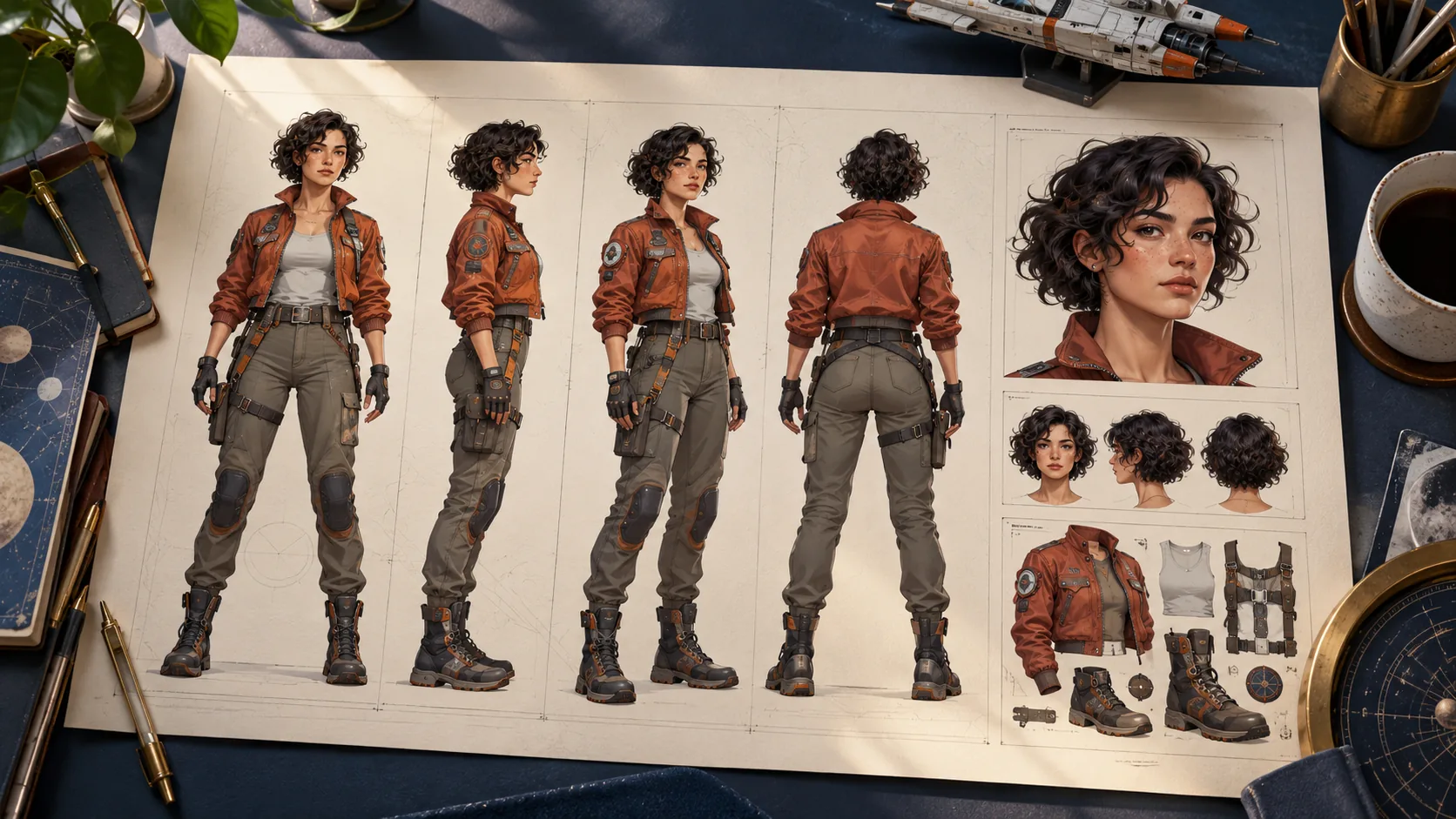
H3 Character Sheet Creator turns reference pictures into one generated sheet showing a character from several angles or with different expressions. It is a ComfyUI workflow with editable layout prompts and reference-role bindings. The download does not include the H3 weights, and its output is a still image rather than an animated turnaround.
This guide checks the workflow distribution, original node repository, and example records on October 23, 2026, following a Japanese discovery post. We reviewed documentation and have not generated a sheet with this workflow. Its supplied examples belong to the distributor.
Prepare the complete workflow
Install the five documented packs under ComfyUI/custom_nodes: H3 Character Sheets, MMH3Tools, H3 Hybrid Loader, Fizgig H3 Still, and Easy Use. Restart ComfyUI before opening the supplied JSON. The Character Sheets pack itself registers three prompt-binding nodes; installing it alone does not supply the other loaders or still-image components.
Select the linked Comfy-Org H3 files and Kijai DMAD adapter. The saved hybrid recipe uses an FL2VA base with a Ref2VA overlay, an H3 Qwen encoder, and video and audio VAEs. Match installed filenames in each loader rather than assuming the JSON's saved paths exist on your computer.
The audio VAE is connected because the conditioning path needs it; the final workflow saves no audio. That distinction is useful when diagnosing the graph: an audio-model dependency does not imply that the output should contain a soundtrack or that an unnecessary branch can simply be removed.
Keep subject, picture, and layout numbers separate
The workflow has three numbering systems. Subject 1 is the character being depicted. Pictures 1–9 are the ordered reference inputs. Sheet indices 0–7 select an output composition. Choosing sheet 4 does not select Picture 4, and adding another portrait does not create a second character automatically.
In BIND 1, describe the intended character's face, hair, build, and clothing. Keep the other subject definitions empty for the single-character workflow. In BIND 2, assign each active picture its role: primary face, supporting face angle, hair, outfit, body, or an existing character sheet.
For example, use a clear portrait as Picture 1, a hairstyle view as Picture 2, and an outfit reference as Picture 3. Assign all three to Subject 1. This is a suggested preparation pattern, not a tested identity-preservation result. The final composed prompt should describe the same reference order you see in the loaders.
Enable consecutive reference slots
Picture 1 starts enabled; optional loaders 2–9 begin bypassed. Enable only the pictures you actually supply, consecutively from 1 through N. If you bypass a middle slot, the image list compresses and later pictures change numbers, while your text bindings may still refer to the old order.
Marking a role unused removes its text binding, not the uploaded picture itself. Also bypass the corresponding loader. If the generated outfit or face comes from the wrong source, inspect active image order and Final H3 prompt before increasing guidance or rewriting every description.
The subject1_lora text field is a trigger token, not a LoRA loader. Adding a name there does not load weights. DMAD is an acceleration adapter in this recipe, not a character identity model; keep those purposes separate when preparing a repeatable setup.
Match layout to the canvas
Changing CHOOSE SHEET does not automatically change the canvas ratio. Set both explicitly:
| Desired composition | Sheet index | Recommended ratio |
|---|---|---|
| Four faces and full body | 0 | 21:9 |
| Six faces and full body | 1 | 21:9 |
| Six headshots or expressions | 2 | 3:2 |
| Front and profile headshots | 4 | 3:2 |
| Front, profile, and body crop | 5 | 21:9 |
| Editable single portrait | 6 | 3:4 starting point |
| Heads above front, overhead, and rear body | 7 | 3:4 |
The saved selection is layout 7 with a portrait canvas. The documented starting size is 2.5 megapixels, aligned to multiples of 32. More panels divide the same image area, so a simpler front/profile sheet may be more useful than a crowded composition when facial detail is the priority.
Preserve the still-image execution path
The source recipe uses 25 steps, ER-SDE, simple scheduling, CFG 1, DMAD strength 0.8, and sigma shifts 16/2. The hybrid configuration selects AdaLN blocks 25–49 from the overlay with the final AdaLN from the base. Begin with that saved recipe before experimenting with a shorter schedule.
Conditioning keeps total_frames = 5, but its clip latent is intentionally unused. Fizgig Still Latent supplies the sampler's true one-frame latent. Connecting the ordinary clip latent instead changes the workflow's purpose. Likewise, the adapter filename containing “4step” does not require reducing this supplied still recipe to four steps.
Review before reusing the sheet
Inspect every panel for the same face, hairline, clothing, jewelry, and proportions. Check whether the profile is genuinely side-on and whether the requested rear view is present. A sheet can look polished overall while one panel changes identity or repeats another angle.
The documented output goes beneath ComfyUI/output/h3_character_sheets/, with workflow metadata in the PNG. Preserve that file and the source references together. For an animated orbit and frame extraction instead, see H3 360 Orbit. For using approved references in a separate hosted video task, see H3 Ref2VA; H3Vid does not currently run this still-sheet graph.